Always visible
See the current week on a calendar icon in the Windows notification area.
 Voltura WeekNumber
For Windows
Voltura WeekNumber keeps the current week number visible in your notification area, right beside the Windows clock.

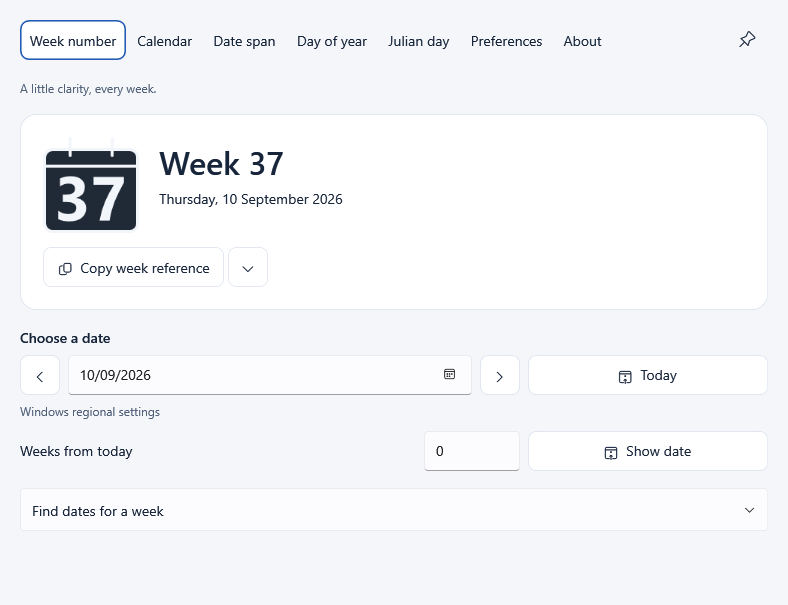
A little clarity, every week
Open the calendar only when you want to look further.
See the current week on a calendar icon in the Windows notification area.
Choose any date to see its week number, then return to today with one click.
Follow Windows, use ISO 8601, or choose your own week rules.
A calendar beside the clock
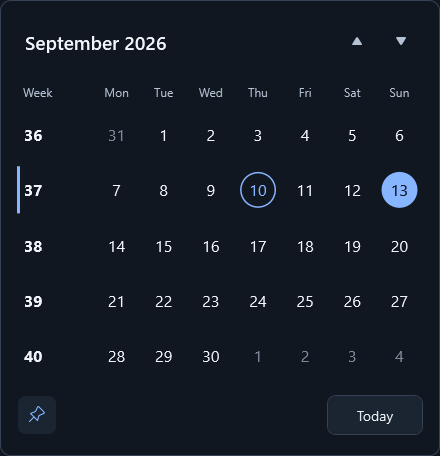
Left-click the week-number icon to open a compact month calendar, with a clear week number beside every row.
Click the heading to browse months, then decades. Each month shows its week range, and all week numbers follow your existing calendar preferences.
Select a date without losing sight of today. Pin the calendar to keep it above other windows while you plan, independently of the main window. Drag the calendar’s top area to position it beside your work. Reopening restores its default position.
Click the icon again or press Escape to hide it. Clicking elsewhere also closes it when it isn’t pinned.
Take your week numbers into another calendar. Export the displayed month or year with the button beside Today, or right-click a date or week to choose a period. Learn about calendar export.
More when you need it
Open the app for deeper calendar and date work.
Browse years, months, and weeks with clear week numbers and date ranges. Pin the window on top while you plan, or save week-number markers as an iCalendar (.ics) file to import into another calendar.
Compare two dates by calendar days, weekdays, weekend days, or whole weeks.
Move one week at a time, or jump a chosen number of weeks from today.
Find a week’s date range, then copy its ISO, short, or localized reference.
Find a date’s day-of-year or Julian day number, or convert either number back to a date.
Choose global shortcuts to open Week number or Calendar from another app while Voltura WeekNumber is running.
Useful, not demanding
Get Voltura WeekNumber
Download the current Windows release. The standard installer is the simplest choice for most people.
View the latest releaseA smaller download. Installs the Microsoft .NET 10 Desktop Runtime if it is needed.
Setup-…-win-x64.exe
Includes the runtime, so installation does not need a separate runtime download.
Setup-…-win-x64-full.exe
Extract it to a writable folder and run the app without installation.
…-win-x64.zip
Getting started
Use an installer, or extract and open the portable version.
It appears beside the Windows clock or in the notification-area overflow.
Read the week from the icon. Left-click to open a compact calendar with week numbers; click again to hide it. Right-click for the main window and preferences.
In the main Calendar view, use the export button beside Today to save the displayed year, month, or week as an iCalendar (.ics) file. The compact tray calendar exports the displayed month or year. Right-click a month, date, or week row for more export choices; keyboard users can press Shift+F10 or the Menu key on a focused item.
Each week becomes a single all-day marker on its first day, following your ISO, Windows regional, or custom week rules. The description includes the week’s date range and rules. Month and year exports include only weeks that start within that period. Markers leave your time free and contain no reminders.
Choose where to save the file, then open or import it in a calendar app that supports iCalendar. Export works offline and needs no account. It saves a file without connecting or synchronizing calendars; repeated imports are handled by your calendar app.
English, Swedish, German, French, Danish, Finnish, Icelandic, Norwegian Bokmål, Polish, Italian, Spanish, Cantonese, Japanese, Brazilian Portuguese, Simplified Chinese, Traditional Chinese, Dutch, Korean, Russian, Turkish, and Indonesian are included.
Choose a language independently of your calendar rules. You can also customize the tray icon, export it as an ICO file, choose light, dark, or system appearance, and import or export your preferences.
In Preferences, assign separate keyboard shortcuts for Week number and Calendar. Preview your key combination as you press it, edit or clear a saved shortcut, and get feedback if a shortcut is invalid or already in use.
Installed copies can check for signed updates and download them automatically; you choose when to install a ready update. Portable copies are updated by downloading a new release.
Your settings stay on your computer. The app does not upload date lookups, settings, or diagnostic logs. Update checks contact GitHub, and the standard installer may download the runtime from Microsoft. Read the privacy policy.


Made by Voltura AB. Support development through Ko-fi or PayPal.